Guide
How to record bass at home: audio interface, DI, amp mic and phone
Plug in, set the gain, hear yourself without delay and capture a clean take, on a computer or a phone, with or without an amp.
Published
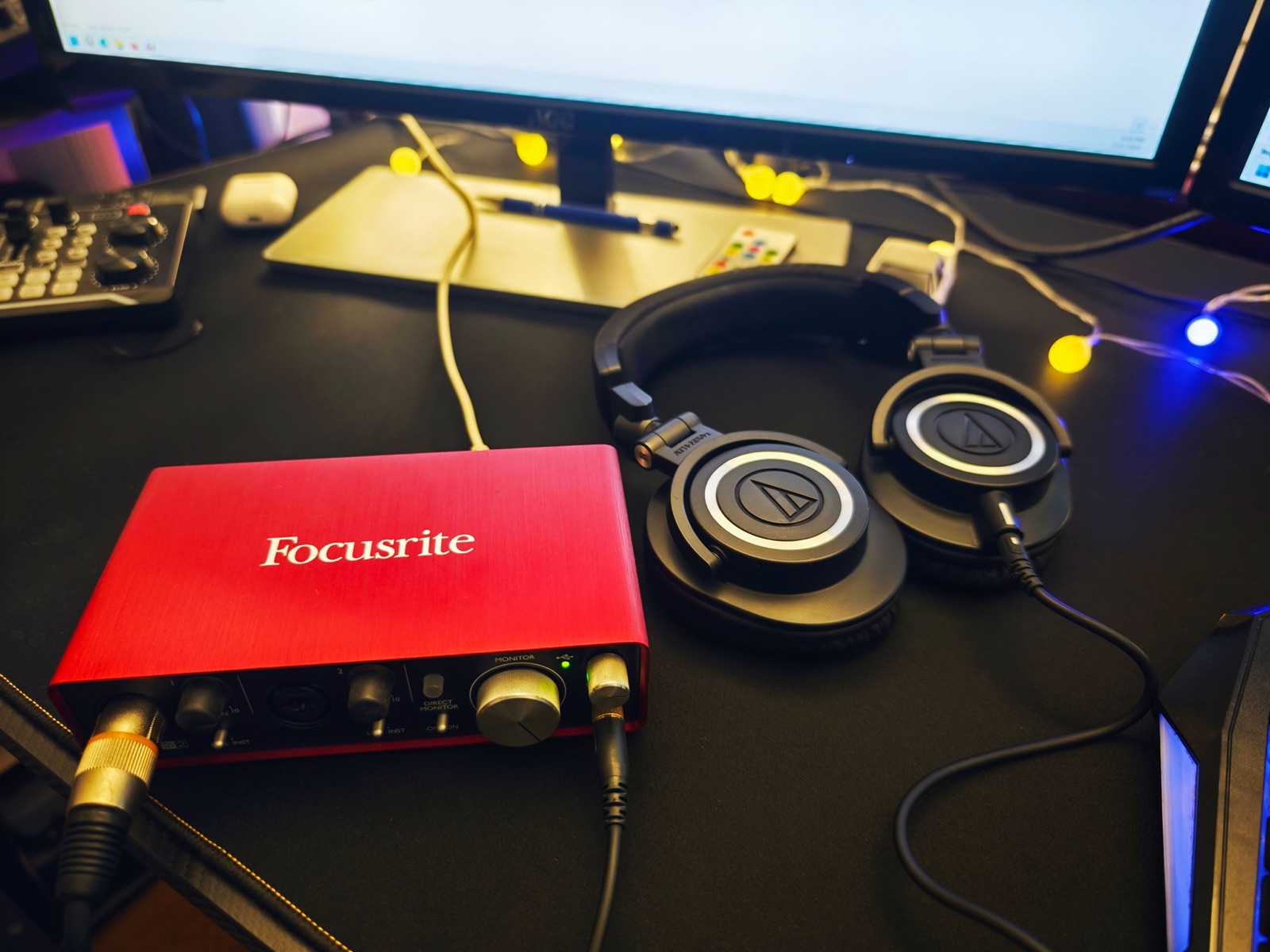
An audio interface for bass is what turns your playing into a clean recording on a computer, tablet or phone. This guide shows what the interface needs, how to record bass DI into a computer, how to set the levels, how to hear yourself without delay, when to put a microphone on your amp, and how to record bass on a phone. You need no studio and no loud amp to get a clean, usable bass track.
What you'll need
Essentials
-
Audio interface with an instrument (Hi-Z) input
: turns the bass signal into audio the computer can record, at the right impedance for a passive bass. -
Instrument cable
: from the bass to the interface's instrument input; a standard 1/4-inch guitar cable. -
Computer, tablet or phone with recording software (a DAW)
: records, edits and plays back the takes. -
Closed-back headphones
: let you hear the bass and the backing at the same time without the sound leaking into a microphone.
Optional
-
DI box or preamp pedal with an XLR output
: for an interface with only microphone inputs, or to shape the tone before it is recorded. -
Microphone and stand
: to record the sound of your bass amp's speaker as well as, or instead of, the direct signal. -
Adapter for your phone or tablet
: connects a USB interface to a phone's charging port when the interface needs one.
How a home bass recording is wired
The simplest chain has four links:
| Step | What it is | What it does |
|---|---|---|
| 1 | Bass and instrument cable | The source; a passive bass needs a high-impedance input |
| 2 | Audio interface | Converts the analog signal into digital audio over USB |
| 3 | Computer, tablet or phone with a DAW | Records, edits and plays back |
| 4 | Headphones or speakers | Let you hear the bass, the click and the backing |
DAW stands for digital audio workstation: GarageBand, Logic Pro, Ableton Live, Pro Tools, Cubase and many others. Any of them records bass well.
Choosing an audio interface for bass
There is no single best audio interface for bass guitar; what matters is that it has the inputs and outputs you need.
An instrument (Hi-Z) input
This is the important one. A bass pickup is a high-impedance source, and an interface's instrument input, often labeled Inst or Hi-Z, is built for it. Focusrite's own recording guide tells you to press the Inst button to switch on the Hi-Z circuitry before you record. A small interface is enough: Focusrite lists its Scarlett Solo with one microphone preamp and one dedicated instrument input, which covers a bass DI plus a microphone.
If your interface has only microphone inputs, put a DI box or a preamp pedal with an XLR output in front of it.
Enough inputs
- One instrument input: bass DI only.
- Two inputs (one instrument, one microphone): bass DI and a mic on the amp at the same time.
- More inputs: only if you record several players together.
Headphone output and direct monitoring
A headphone jack with its own volume knob is standard. Look also for a direct monitor switch or knob, explained under latency below.
Software in the box
Many interfaces come with a DAW. Focusrite, for example, lists Ableton Live Lite, Pro Tools Intro+ and Cubase LE with the Scarlett Solo. Check the maker's page for what comes with yours.

How to record bass DI
DI, short for direct injection, means recording the signal from the cable rather than a microphone. Focusrite calls it the easiest way to record bass, and very effective for pop, blues and rock.
- Connect the interface to the computer and choose it as the audio input and output in your DAW's settings.
- Plug the bass into the instrument input and switch on Inst or Hi-Z.
- Turn the interface's gain all the way down, then set the volume and tone controls on the bass where you'll play them.
- Create a mono audio track. Focusrite records bass in mono; a stereo track adds nothing and can cause phase problems.
- Select the input number your bass is plugged into and arm the track.
- Set the level (next section), then record.
The raw DI sound is clean and a little plain. Shape it afterward with EQ, compression or an amp simulator plug-in; the clean take stays untouched underneath, so you can change your mind. Focusrite also suggests compressing while tracking to tame the bass's wide dynamic range, which is what a compressor pedal in front of the interface does.
Through a DI box or preamp pedal
A DI box or preamp DI connects to a microphone input over an XLR cable. A preamp pedal lets you record the tone you hear in the room, with its drive and EQ, rather than shaping everything later. Some multi-effects units and headphone amps also have USB or line outputs for recording; check the maker's page for yours.
Setting levels: gain staging for bass
Bass has big peaks: a hard pluck, a slap or a dig with a pick can be much louder than an average note.
- Play the loudest part of the song at full strength while you raise the gain.
- Stop well before the clip light or the top of the meter. On many interfaces a light or ring around the gain knob turns red when the signal clips.
- In the DAW, peaks no higher than about -6 dBFS are plenty, and lower is fine. Sound On Sound points out that with 24-bit recording you don't need to sail close to clipping, and that 6 dB of headroom isn't a lot for peaks.
A take that is a little quiet can be turned up later without harm. A clipped take is distorted for good.
Latency and monitoring
Latency is the delay between plucking a note and hearing it in your headphones, because the signal passes through the converters, the computer and back. Audient, an interface maker, notes that a delay of around 6 milliseconds can already be heard, which makes it hard to lock in with a track.
Lower the buffer size
The buffer size setting in your DAW or the interface's driver trades delay for stability. Apple's Logic Pro support advises setting the buffer to the lowest setting when recording and raising it one step if you get overload alerts. Raise it again for mixing.
Use direct monitoring
Direct monitoring sends the input straight to your headphones, as Audient puts it, greatly reducing latency. You hear the dry bass with no plug-ins, so turn off monitoring on the DAW track to avoid hearing it twice. Don't use Bluetooth headphones while recording: Apple's support page recommends them for mixing or listening only, since wireless output adds latency.
How to record a bass amp with a microphone
Miking an amp adds the character of the speaker and the room, and the grit of an overdriven amp. Focusrite's advice: use a microphone with a good bass response, and place it close, because directional microphones pick up more bass the nearer they are to the source (the proximity effect).
- Set the amp at a moderate volume; close miking needs no stage level.
- Place the microphone close to the speaker grille, aimed at the speaker.
- Record a short test, listen back, move the microphone a little across the speaker and record again. Keep the position that sounds best on playback.
- Set the gain as for DI, with room for the loudest notes.
DI and microphone together
Focusrite notes that many engineers record DI and microphone at the same time, to keep their options open in the mix. Because the microphone is further from the source, the two tracks arrive a fraction of a second apart and can cancel some low end. Zoom in on the waveforms in your DAW and nudge the mic track until the two line up.
Keep the volume sensible while you experiment, and use hearing protection whenever you play loud.
How to record bass on a computer
The steps above are the whole process. A few habits make sessions easier:
- Record with a click or a drum track so takes can be edited and looped. See bass backing tracks for ways to build one.
- Loop a section for several takes. In GarageBand for Mac, the cycle area repeats a part of the project, which Apple suggests for practicing a part and recording multiple takes.
- Name and keep takes rather than recording over them; the best bars often come from different passes.
How to record bass on a phone
A phone can record a perfectly good bass DI. Connect the bass through an audio interface or an instrument adapter that works with your phone; some USB interfaces need an adapter for the phone's port.
In GarageBand for iPhone, Apple describes connecting an electric bass and playing through its amp models. Once an instrument or interface is connected, a Monitor switch appears so you can hear yourself, and an input dot shows the level: if it turns red, lower the volume on your instrument. Apple also warns that plugging a bass into the headphone port with monitoring on can cause feedback from crosstalk.
Recording through the phone's built-in microphone is fine for a quick idea, but a small microphone hears little of a bass's low end, so use an interface for anything you want to keep.
Common mistakes
- Leaving Inst or Hi-Z off, which makes a passive bass sound thin and quiet.
- Recording too hot. Leave headroom for the loudest notes.
- A dead battery in an active bass, which shows up as a weak, distorted signal.
- Recording with the buffer set high, then fighting the delay.
- Hearing yourself twice, through direct monitoring and through the DAW track.
- Fixing a bad tone with plug-ins that a fresh set of strings or a change of pickup balance would fix at the source.
What to check next
Before you record, tune the bass and check it again between takes. Build a drum loop to play over with the backing tracks guide, and if you want your amp's tone without a microphone, see the bass DI box guide. More recording guides are collected under Home recording.
Questions
What audio interface do I need for bass?
Any interface with an instrument or Hi-Z input works for recording bass DI. If you also want to mic an amp at the same time, choose one with at least two inputs, one of them a microphone input.
Is it better to record bass DI or with a microphone on the amp?
DI is the easiest and the most common at home, and amp simulators can shape the sound afterward. A microphone on the amp adds the character of the speaker and the room; many engineers record both at once and choose in the mix.
Why do I hear a delay when recording bass?
That delay is latency: the signal travels through the computer and back before you hear it. Lower the buffer size in your recording software, or turn on your interface's direct monitoring, which sends the input straight to your headphones.
How loud should I record bass?
With 24-bit recording there is no need to record close to 0 dBFS. Keep the loudest notes well below the clip light, with peaks no higher than about -6 dBFS, so slaps and hard digs have room.
Can I record bass on my phone?
Yes. Connect the bass to an audio interface or instrument adapter that works with your phone and record in an app such as GarageBand for iPhone, which shows an input dot that turns red when the signal is too loud.
Sources
- Focusrite — How to record bass
- Focusrite — Scarlett Solo
- Sound On Sound — Should I gain-stage to -6dBFS or -18dBFS?
- Audient — Audio latency explained
- Apple Support — Manage input monitoring latency in Logic Pro for Mac
- Apple Support — Play the Amp in GarageBand for iPhone
- Apple Support — Use the cycle area in GarageBand on Mac
Read next
Guide in Amps & effects
Bass DI box: what it does, passive vs active, and preamp DIs like the SansAmp
How a DI turns your bass signal into one the mixer can use, which kind suits your bass, and where a preamp DI pedal fits.
Buying guide in Amps & effects
Bass headphone amp: plug-in units, wireless systems and desktop options for silent practice
Practice at any hour without a speaker: the types of bass headphone amp, what each one gives you, the features to check and how to keep the volume safe.
Guide in Amps & effects
Bass preamp pedal: what it does, how it differs from a DI and an amp, and how to set one up
The tone-shaping part of a bass amp in a pedal: what it adds to your rig, which features matter and three ways to connect it.